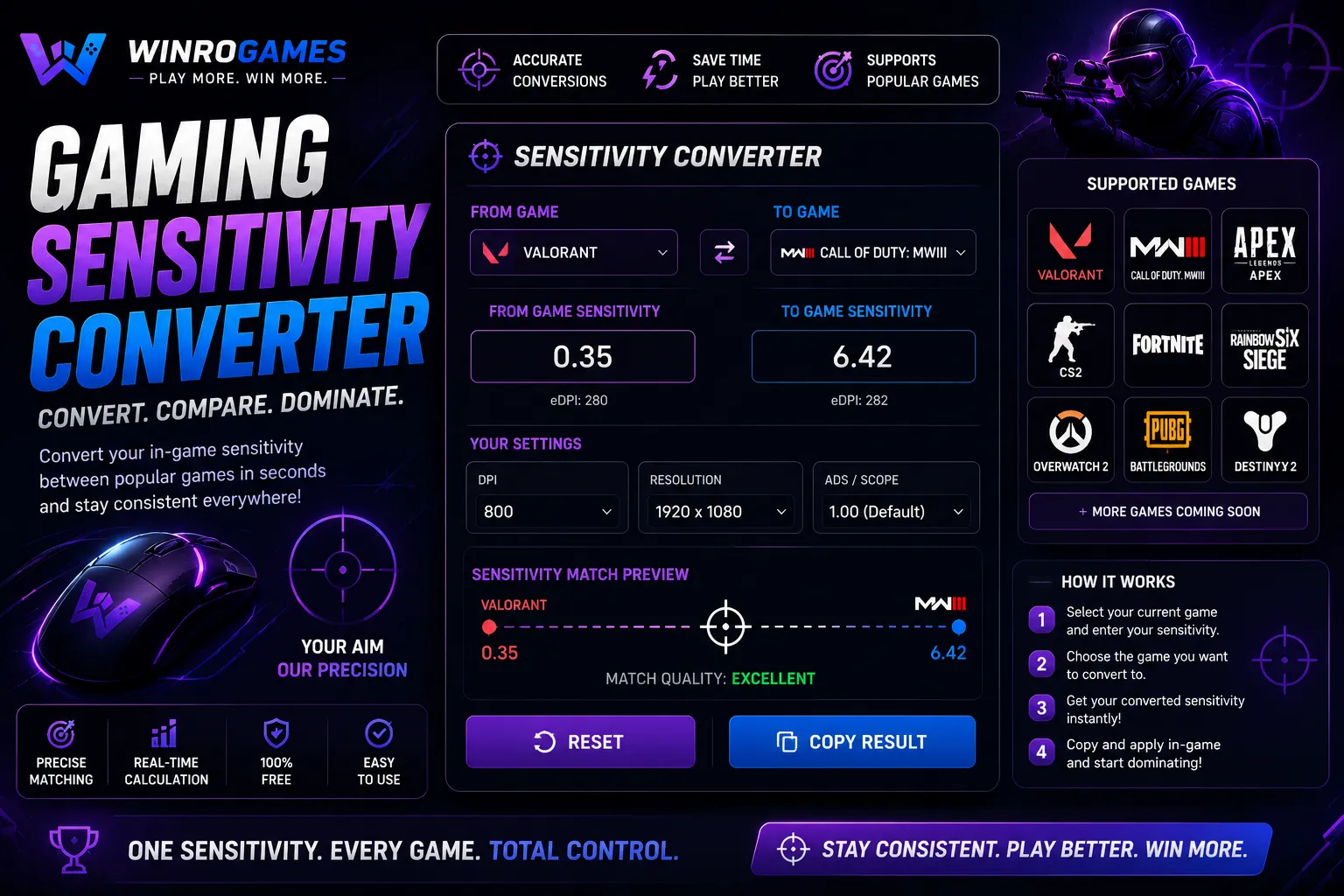
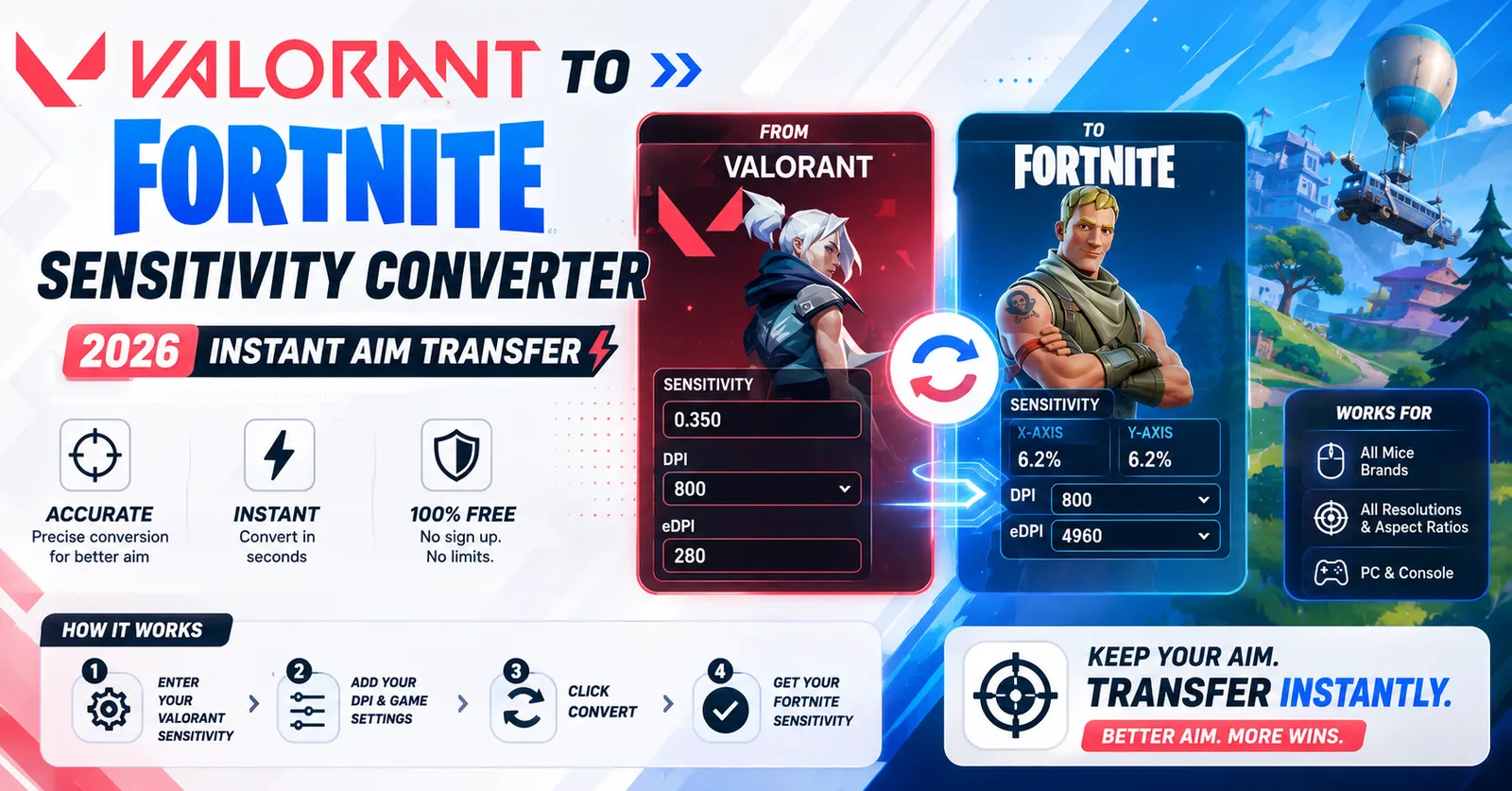
A Valorant to Fortnite sensitivity converter recalculates your exact mouse sensitivity settings so that your physical mouse travel distance per 360-degree turn (cm/360) remains perfectly identical between both games. Because Riot Games' Valorant and Epic Games' Fortnite utilize different camera rotation yaw multipliers within their game engines, inputting your Valorant sensitivity directly into Fortnite destroys your muscle memory. This guide details the exact mathematical conversion formula and yaw mechanics governing both competitive shooters.
The Science of Cross-Game Sensitivity: Yaw Constants
Mouse sensitivity is not an arbitrary scale; it is a multiplier applied to hardware mouse counts to rotate your in-game first-person camera by an angular degree value. The fundamental formula determining physical turn distance is:
cm/360 = (360 * 2.54) / (DPI * In-Game Sensitivity * Yaw Constant)The yaw constant represents how many degrees the camera turns per hardware mouse count at a sensitivity of 1.0:
- Valorant Yaw Constant: Exactly 0.07 degrees per count.
- Fortnite Yaw Constant: Exactly 0.005555 degrees per count (at 1.0 in settings, represented as 100%).
The Exact Conversion Formula
Because Fortnite's in-game sensitivity menu displays values as a percentage (e.g., 8.0%), we calculate the direct conversion ratio between their respective yaw scalars:
Conversion Multiplier = (Valorant Yaw / Fortnite Yaw) = (0.07 / 0.005555) = 12.60126To convert your Valorant sensitivity to Fortnite:
Fortnite % Sensitivity = Valorant Sensitivity * 12.60126Worked Example: Converting 0.35 Valorant Sensitivity
- Take your current Valorant sensitivity: 0.35.
- Multiply by the ratio constant: 0.35 * 12.60126 = 4.41%.
- Set both your Fortnite X-Axis Sensitivity and Y-Axis Sensitivity to 4.4%.
- Your physical cm/360 travel distance remains identical to the millimeter.
Sensitivity Conversion Quick-Reference Table
Use the lookup table below to find matching settings at standard 800 DPI:
| Valorant Sens | Fortnite X/Y % | CS2 Matching Sens | Physical Distance (cm/360) | Aim Category |
|---|---|---|---|---|
| 0.20 | 2.52% | 0.64 | 81.6 cm | Arm Tracking (Ultra-Low) |
| 0.25 | 3.15% | 0.80 | 65.3 cm | Tactical Shooter Standard |
| 0.30 | 3.78% | 0.95 | 54.4 cm | Balanced Hybrid |
| 0.35 | 4.41% | 1.11 | 46.6 cm | Fast Flicking Standard |
| 0.40 | 5.04% | 1.27 | 40.8 cm | High Speed Building |
| 0.45 | 5.67% | 1.43 | 36.3 cm | Wrist Aiming (High) |
Targeting and Scoped Sensitivity Considerations
While hipfire camera movement converts linearly via the formula above, Fortnite includes separate sliders for Targeting Sensitivity (Aim Down Sights, or ADS) and Scope Sensitivity (Sniper Scopes):
- 1:1 ADS Matching: Setting your Targeting Sensitivity to 100% ensures that aiming down sights rotates at the exact same physical hand-to-turn ratio as your hipfire.
- Focal Length Scaling: If you prefer ADS to feel visually identical on screen rather than physically identical on the mousepad, set Targeting Sensitivity to approximately 70% to 80%.
Third-Person Perspective Pivot Mechanics
Converting sensitivities between Valorant and Fortnite requires understanding camera pivot geometry. In first-person tactical shooters like Valorant, the camera rotates precisely around the player's internal eye coordinate. In third-person shooters like Fortnite, the camera orbits around an offset boom arm positioned over the character's shoulder.
When turning 180 degrees in Fortnite, your avatar swings across the screen foreground, altering visual angular velocity relative to distant targets. Although physical mouse travel (cm/360) is mathematically identical between both titles using our 12.60126 yaw multiplier, understanding this orbital perspective prevents players from over-adjusting their aim during close-quarters shotgun duels.
Building and Editing Sensitivity Multipliers in Fortnite
Fortnite allows players using controllers to set dedicated Build Mode and Edit Mode sensitivity multipliers (e.g., 1.5x or 2.0x). On mouse and keyboard, sensitivity is unified across weapons and building blueprints. If you find high-speed box building physically demanding on low sensitivity, slightly increasing your base DPI while maintaining the matching conversion ratio provides greater mechanical comfort without sacrificing weapon aim.
Mousepad Surface Friction: Speed Cloth vs Control Cloth
When transferring sensitivity settings across games, your physical mousepad surface plays a massive role in actual tracking feel. Control mousepads feature textured, high-friction weaves that provide stopping power, helping players stabilize small crosshair micro-adjustments in tactical shooters like Valorant.
In contrast, Fortnite involves continuous high-velocity 360-degree building and shotgun tracking. Many hybrid players utilize smooth, low-friction speed pads or hybrid glass-infused surfaces. A low-friction surface allows rapid arm swipes during building maneuvers without requiring excessive physical exertion, preserving hand endurance across prolonged competitive sessions.
Converting Sensitivities from Apex Legends and Call of Duty to Fortnite
If you play multiple shooters alongside Fortnite, calculating cross-game conversions requires applying engine yaw ratios:
- Apex Legends (Source) to Fortnite: Apex Legends uses Source's 0.022 yaw multiplier. Because (0.022 / 0.005555) = 3.960396, multiply your Apex sensitivity by 3.96% to find your matching Fortnite sensitivity percentage.
- Call of Duty to Fortnite: Call of Duty uses an internal 0.0066 yaw. Divide your Call of Duty sensitivity by 1.188 to match your Fortnite percentage settings.
Vertical Angle Tracking and Crosshair Placement
Unlike tactical first-person shooters where engagements occur primarily on flat, horizontal sightlines, Fortnite combat is intensely three-dimensional. Jump pads, shockwave grenades, and vertical tower building force players to track opponents moving rapidly across 90-degree vertical arcs.
Because human wrist anatomy rotates more freely horizontally than vertically, ensure your mouse grip allows vertical downward wrist flexion without running out of physical mousepad space. Keeping your chair and desk at an ergonomic 90-degree elbow angle prevents arm strain during prolonged vertical shotgun duels.
Field of View Discrepancies and Screen Perception
A crucial factor when transitioning between Valorant and Fortnite is camera perspective. Valorant locks your view to a rigid first-person perspective with a fixed 103-degree horizontal FOV. Fortnite operates primarily from a third-person over-the-shoulder perspective with an 80-degree vertical FOV (equating to roughly 110 degrees horizontal at 16:9 widescreen).
Because your character model occupies physical screen space in third-person view, camera rotation swings around a central pivot point behind your avatar rather than rotating around an internal camera origin. While the physical mouse displacement (cm/360) is mathematically identical, this perspective shift requires a brief 10-minute adjustment period to acclimatize your hand-eye tracking.
Explore More Precision Aim Utilities on WinroGames
Fine-tune your gaming setup with our complete suite of aim tools:
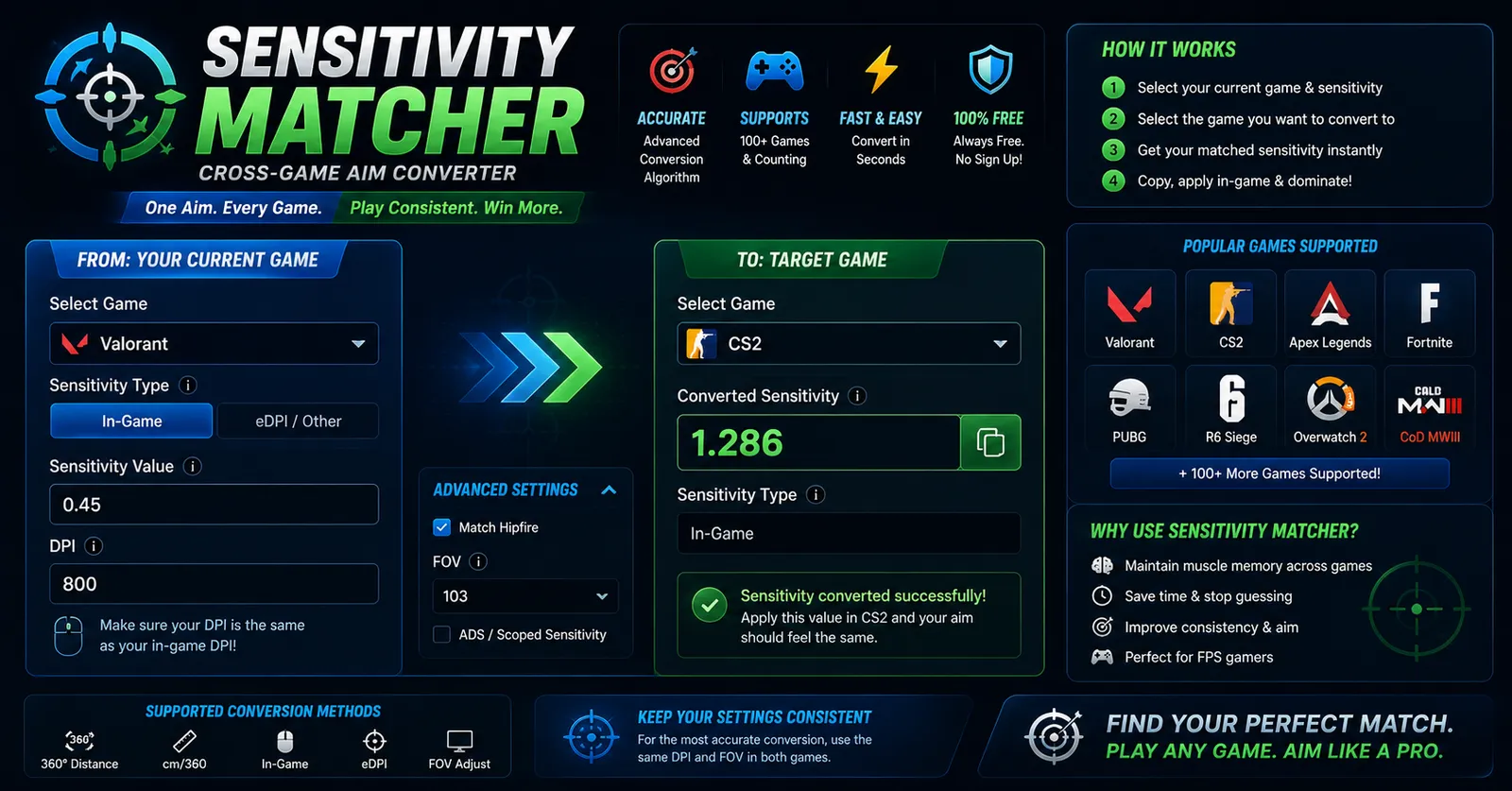
- Convert across dozens of titles using our multi-game Sensitivity Matcher.
- Calculate true hardware eDPI with our Mouse DPI Calculator.
- Warm up your mouse control and target tracking with our browser Aim Trainer.
- Convert your settings to Counter-Strike in our CS2 sensitivity converter guide.
Frequently Asked Questions
Should Fortnite X and Y sensitivities be identical?
Yes. Setting X-Axis and Y-Axis sensitivities to identical percentages preserves uniform diagonal muscle memory, which is essential for consistent crosshair placement and shotgun flicks.
Does changing mouse DPI alter the conversion ratio?
No. As long as you maintain the same physical DPI on your mouse hardware when playing both games, the 12.60126 conversion ratio remains 100% mathematically accurate.
Can I enter decimal percentages in Fortnite?
Yes. In Fortnite's Mouse and Keyboard settings, you can click on the percentage value and type exact tenths of a percent (e.g., 4.4%) using your keyboard.
What is the difference between Scope Sensitivity and Targeting Sensitivity in Fortnite?
Targeting Sensitivity applies when aiming down sights with assault rifles, shotguns, and submachine guns. Scope Sensitivity applies exclusively when looking through high-magnification sniper optics.
Why does Fortnite building feel better on slightly higher sensitivity?
Fortnite requires frequent 360-degree wall and ramp placements during build battles. Many players prefer a slightly higher sensitivity (e.g., 5.0% instead of 4.4%) to reduce physical arm fatigue during rapid vertical box building.
Targeting and Scoped Sensitivity Modifiers in Fortnite
While hipfire sensitivity conversion matches your 360-degree rotation distance, Fortnite introduces separate percentage sliders for "Targeting Sensitivity" and "Scope Sensitivity". These settings apply dynamic field-of-view scaling whenever you aim down sights (ADS) with assault rifles or sniper optics. To preserve uniform flick consistency across zoom levels, competitive players generally set Targeting Sensitivity between 60% and 80%, ensuring visual tracking velocity remains proportional to hipfire muscle memory.
Sources & Technical Mathematics
- Epic Games. Unreal Engine Input Component Documentation: Base Turn Rates and Yaw Angles.
- Riot Games Developer Blog: Valorant Sensitivity Mechanics & Hardware Normalization.
- WinroGames Aim Mechanics and Sens Matched Calculation Library (2026).